


I'd much prefer a cold winter’s night to sit and watch hours and hours of Figma updates on Youtube, but alas the temperature here in Spain has been sitting — not so comfortably — over 30ºC (86ºF) for the past few weeks. But those videos won't watch themselves, so I grabbed a few gallons of water and jumped in. The sessions that I watched were packed with a lot of interesting things and I’ve shared a couple below which are most relevant to this article.
Related Config 2023 picks
A new phase for Design
Having worked on both sides of the developer and designer side of the fence, I always enjoyed dancing between the left and right sides of the brain. I loved that when the creative block hit or when I was being too subjectively critical of my designs I could move over to the developer side and switch on a much more logical way of thinking and working.
Since building my first design system, I have always aspired to keep the two worlds of design and code as closely coupled as possible. Whilst some tools are doing this in different ways (I'm looking at you Webflow, Framer, and UXPin) Figma has just dropped one of the most significant updates in a while — variables.
What is a variable?
Whilst a lot of designers working on systems may be more familiar with the term "token", Figma interestingly went with "variable" for this new feature. In both cases, a variable is a named container that holds a value.
In Typescript, a variable represents a specific location in memory where data can be stored and retrieved. Variables are used to store and manipulate values of different types, such as numbers, strings, booleans, objects, or functions. In Figma, we are limited to storing RGBA colors, numbers, strings, and booleans.
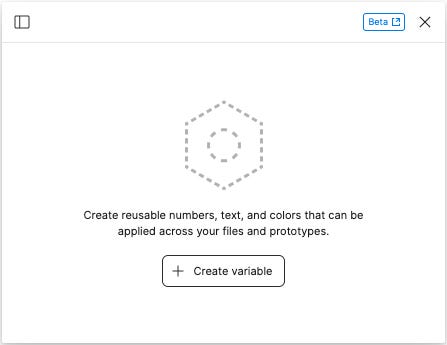
Column layout example
In Figma, responsive design has always relied on plugins and a system of hacks to recreate certain responsive behaviours. This is not great, as you need to ensure folks have the right plugins installed and can remember all of those hacks in the moments that they need them. It doesn't scale well.
I'd like to share an example of how you can use variables to improve your workflow and align your designs more closely with code.
1. Set up your fixed-size variables
First up, define the unit size that you work with. Most folks, including myself, follow an 8pt scale. Setting these fixed values will help to ensure consistency in your design as it will prevent folks from relying on guessing the scale that you are using.
Note the keyword here "fixed". These are immutable values that should never change. In Javascript, it would be the same as using const instead of let.
In Figma, you'll want to click on the “Local variables” button and add a new collection called “Fixed Units”. This is where we will add all of the units of measurement that will remain static, but which we can reference later.
I've used a scale of 0, 0.5, 1, 2, 3, 4, 5, 6, 7, 8, 9, 10, 11, 12, 13, 14, 15, 16, 32, 45, 64, 96, 128, 160, 180 which gives decent flexibility at the lower end and covers all the common larger sizes that you will likely work with. Of course, this list can be adapted over time.
2. Set up your responsive breakpoints
With our fixed values created, we can now assign some of these variables to our responsive sizes. We will want to create a new collection called “Responsive Units” to create a separation between these two concepts. By using this new collection, we will also be able to use "modes" to help us decide how our various units should scale across different breakpoints.
Inside this collection, let's start by defining some common layout units. These are:
containerWidthcontainerPaddingcolumnSpacing
It's common to use camelCase in TypeScript so I will stick to that for even more alignment between designers and developers.
Next up, we will want to set some viewport widths and heights. This way we can have a standard set of heights and widths to use in our design. Figma offers a tonne of frame sizes out of the box but there is no way to limit or recommend which ones to use across the team. This should help with that.
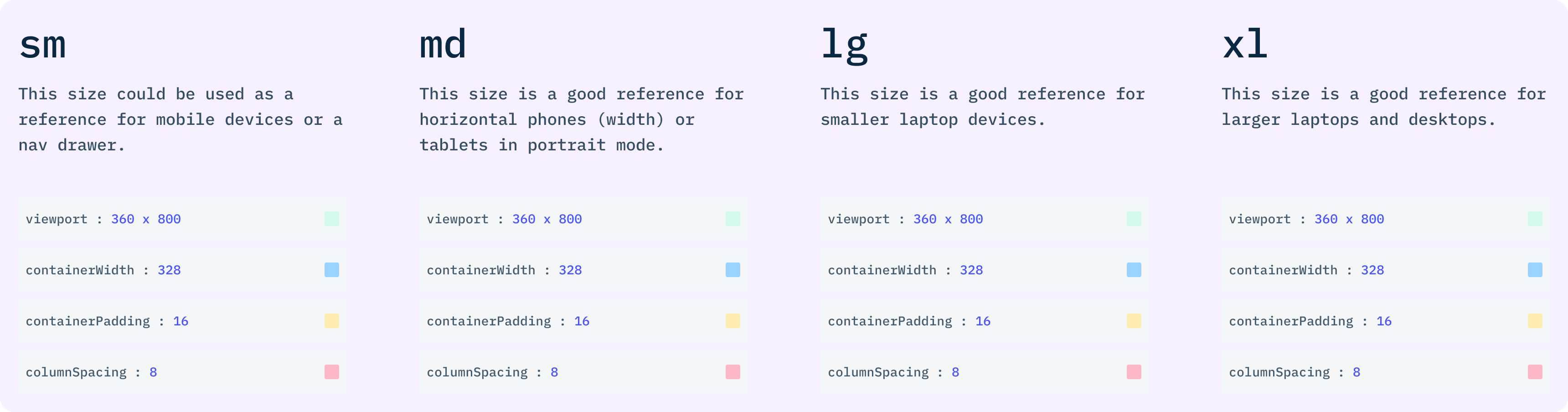
3. Create your column layouts
With some of the basics in place, we can now set up our columns using Figma's native column and grid feature. Here we are going to set a standard 12-column layout and use 16 (which is the same as our fixed unit of 2) for the columnPadding.
For the containerSpacing , we will start off with a default of 8 (or a fixed unit of 1) which will be used on mobile. With our 12 columns now set up, we know what our containerWidth will be and we can add that value in there.
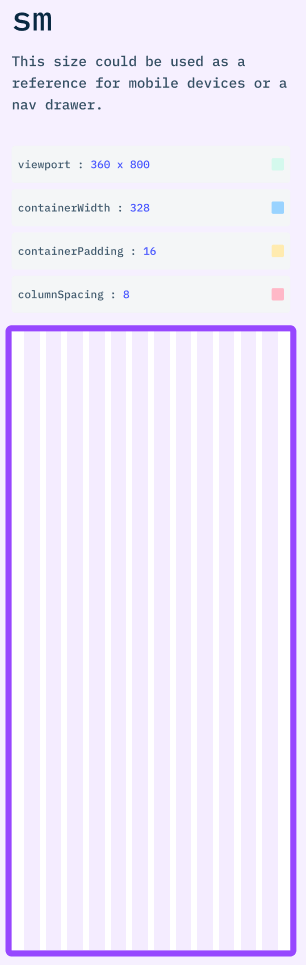
4. Create your column sizes
Now for the tedious part — with your columns visible and set up with the correct padding and spacing, measure out the width that each column will be and create a variable for all of the column widths from 1 through 12.
Within your Responsive Units collection, you can organise your variables into groups. This can be done using the / notation as you are typing the name, or by selecting multiple variables and using the right-click context menu to group several items.
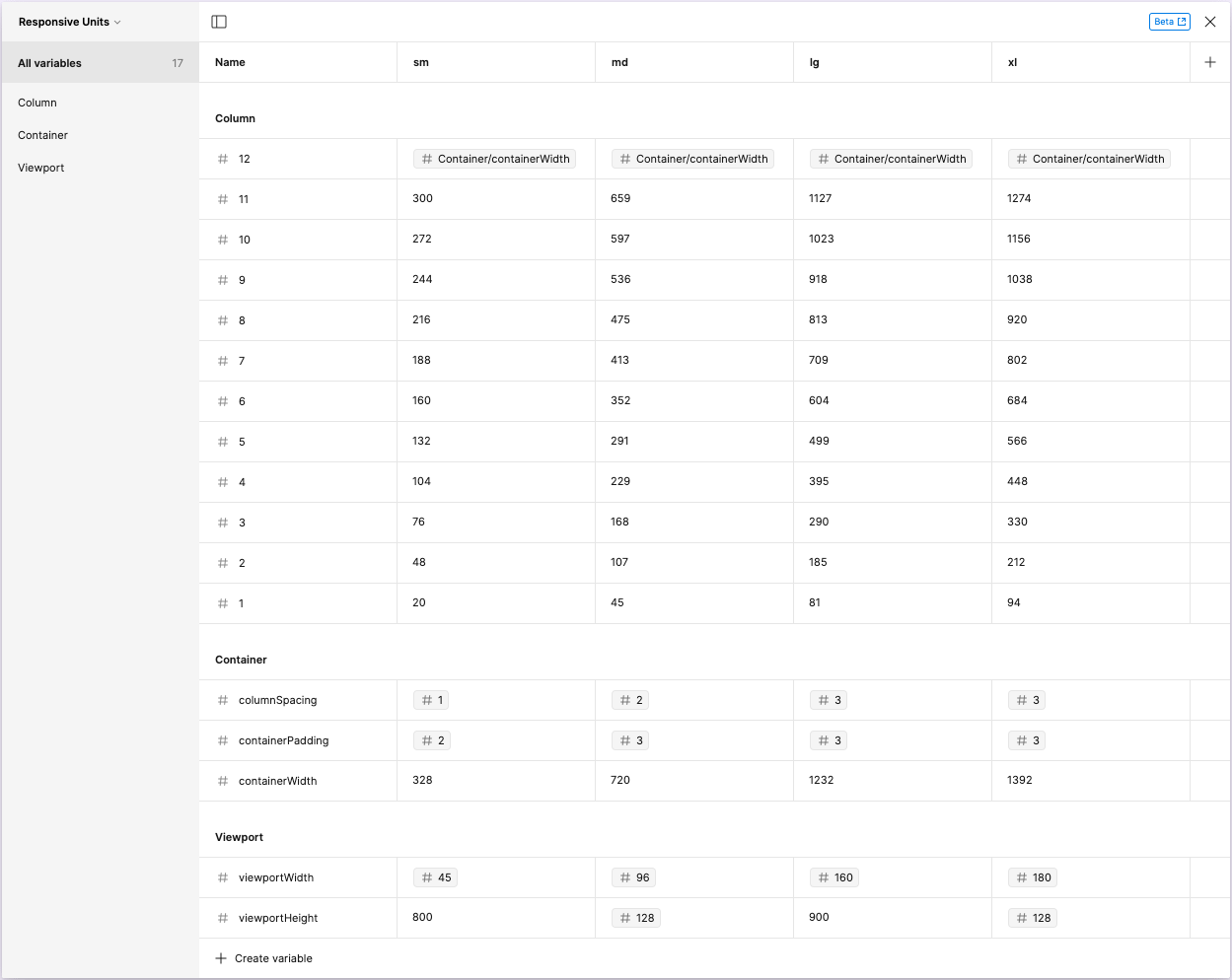
The three groups we have created are called Column, Container, and Viewport respectively.
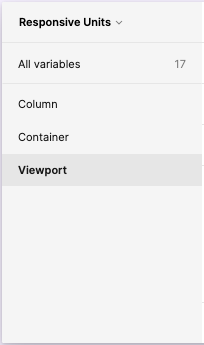
5. Add your responsive breakpoints
Here comes the magic. With all of our responsive variables set in the default mode, we can go ahead and rename that first mode column to sm. We can then create 3 more for md, lg, and xl. These will loosely represent mobile, tablet, small laptop, and larger desktop displays.
Choosing a set of values that works for your context and your customers you can build out each column until it looks something like this:
6. Set up some test frames, and watch the magic
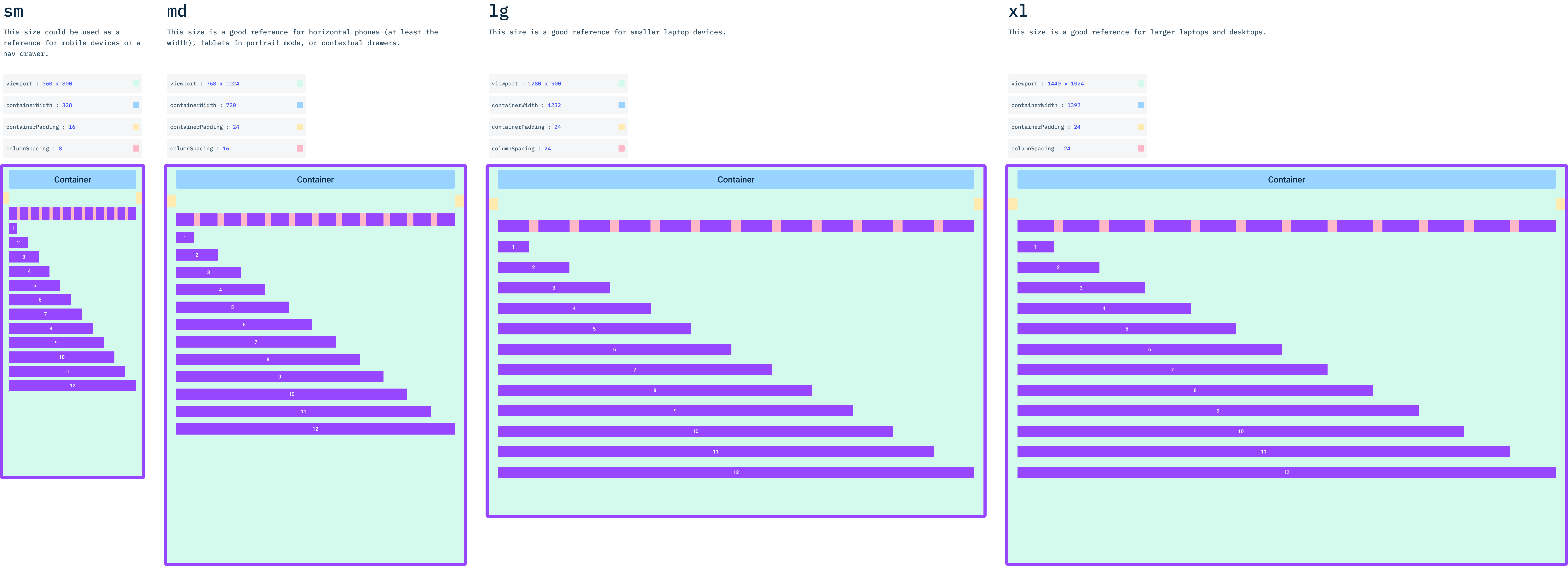
Lastly, to ensure that everything works as planned, you can create some example frames which each have a different mode set. You can do this by setting a mode via the contextual menu on the layers section on the right panel.
To make life easier, I created a small guide that also displays each of the variables as dynamic text and also color codes the various responsive sizes. This way, you can quickly view and test your layout across different device sizes.
The last step will be to publish this for your team to allow them to follow a more consistent way of sizing and laying out their UI.
That's a (flex) wrap 🤦
I could go into a lot more detail on many more exciting ways to use this and likely will in the future. Until then, I hope this has offered a bit of an insight into how variables can be used as a core part of your design workflow, which will also help your engineering friends.
Any comments or feedback, please feel free to leave them below.
Powering this week's thoughts
Music plays such an important role when I am thinking, working, and reflecting. I also find it interesting to see what others are listening to. It's a gateway into an aspect of their personality. That's why I'd like to share, with each article, an artist or playlist that I have been listening to that week. Here's this week’s: