


My browser journey
It's 2007. The iPhone has launched and meanwhile, I am doing round trips between my code editor and the browser hitting refresh to see if the changes I made worked. When I first started to code professionally, I had the pleasure of doing so on the now-infamous Internet Explorer 6.
Since those days, my journey through the myriad of browsers has been quite diverse. Being an early adopter, I can't resist that freshly-unwrapped product smell that, unfortunately, doesn't exist yet in the digital world. This article will focus on the journey to find the utopian browser—spoiler, it doesn't exist. But, we're getting close.
From information highway to productivity powerhouse
As technology has advanced, our relationship with the internet and the browsers we use to "surf" it, have taken impressive leaps. Now there's barely a wait while media-rich content appears automagically on your screen. Whizzing through pages and applications is a breeze. It's a stark contrast from those days of install disks and minutes-long downloads.
What's interesting though is that the fundamental concepts of a browser haven't really changed all that much. We still have an address bar, bookmarks, history, basic navigation and search to boot. Sure, the "form" looks better now compared to 16 years ago but I'd argue the "function" hasn't really advanced at the same rate.
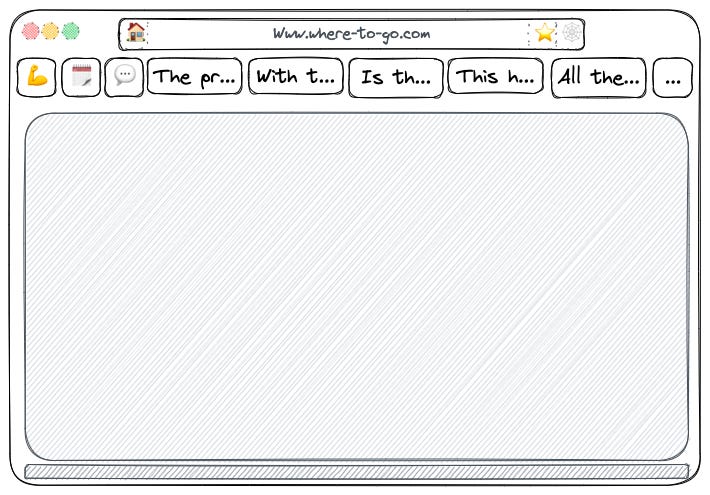
Fundamental concepts
Until now, few browsers have strayed far from the concepts that we are familiar with until now, with the introduction of browsers like SigmaOS and Arc. In the scrolls that follow, we'll explore how these new players are looking to shake things up and ponder what the future of browsers could look like.
Setting the stage
It all starts by looking through a window
My first experience using a browser was on a Windows machine, and back then each website had its own...window. Each of these would live alongside all your other applications, each in their own respective windows. With our ability to consume information alongside multi-tasking across applications, the concept of windows became stretched.
Most common browsers use windows to separate "profiles", like your personal and professional accounts. Or regular vs private browsing — also known as incognito. With our work and personal lives continuing to converge (especially post-pandemic) navigating these blurred lines is something we should optimise for.
Windows Sidebars, Panels, and split views FTW
Because one view does not fit all
A lot of the recent browsers I've tried have taken an interesting approach to the concept of windows. When I stumbled across Shift, for example, it was a game changer. It allowed me to have a standalone app for my common web apps and my traditional browser for browsing.
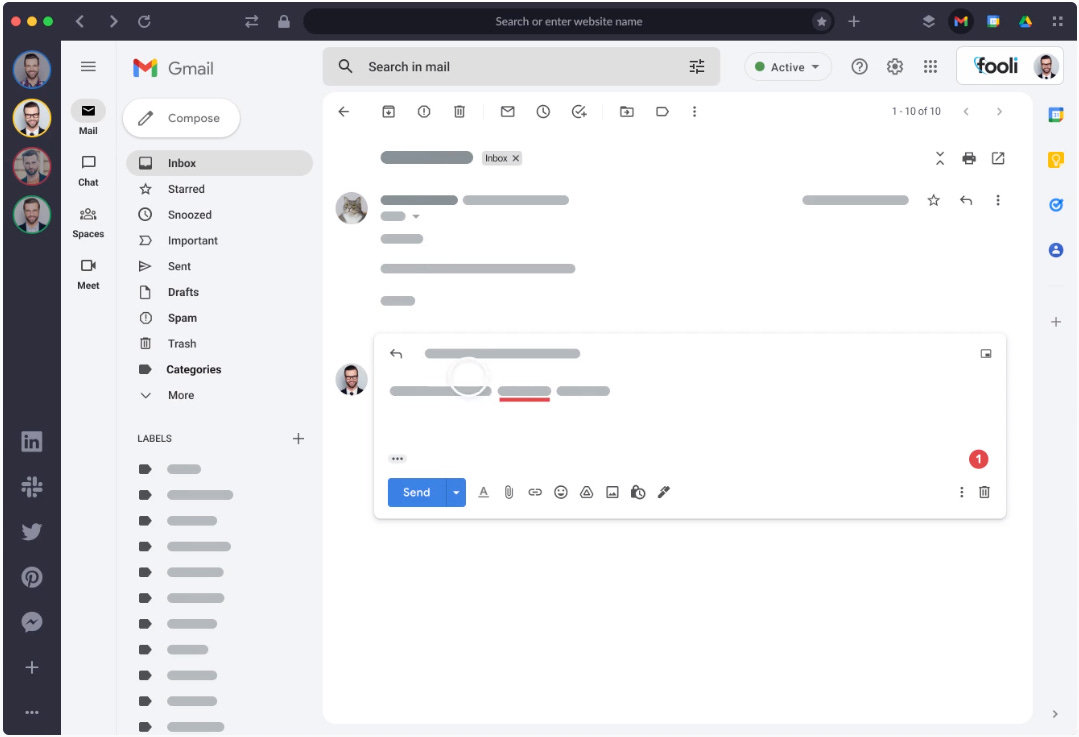
This did mean running two apps, however, which was not ideal given that I like to try and minimise my toolset. In short, Shift was a dedicated browser for pinned tabs featuring your most-used applications. One key feature was the ability to switch between work and personal accounts seamlessly from a single window which at the time was a new concept.
To this day, Chrome and most other browsers will still have you spin up a new window any time you want to jump between profiles. Despite that slightly improved experience, I found that Shift was just not worth the price they were asking for all that it offered.
Following Shift, I had come across SigmaOS which also looked like an interesting challenger. They introduced the concept of workspaces and lazy search which were new concepts at the time. I had experimented with SigmaOS a while back but for various reasons, I couldn't fully switch to it as my primary browser.
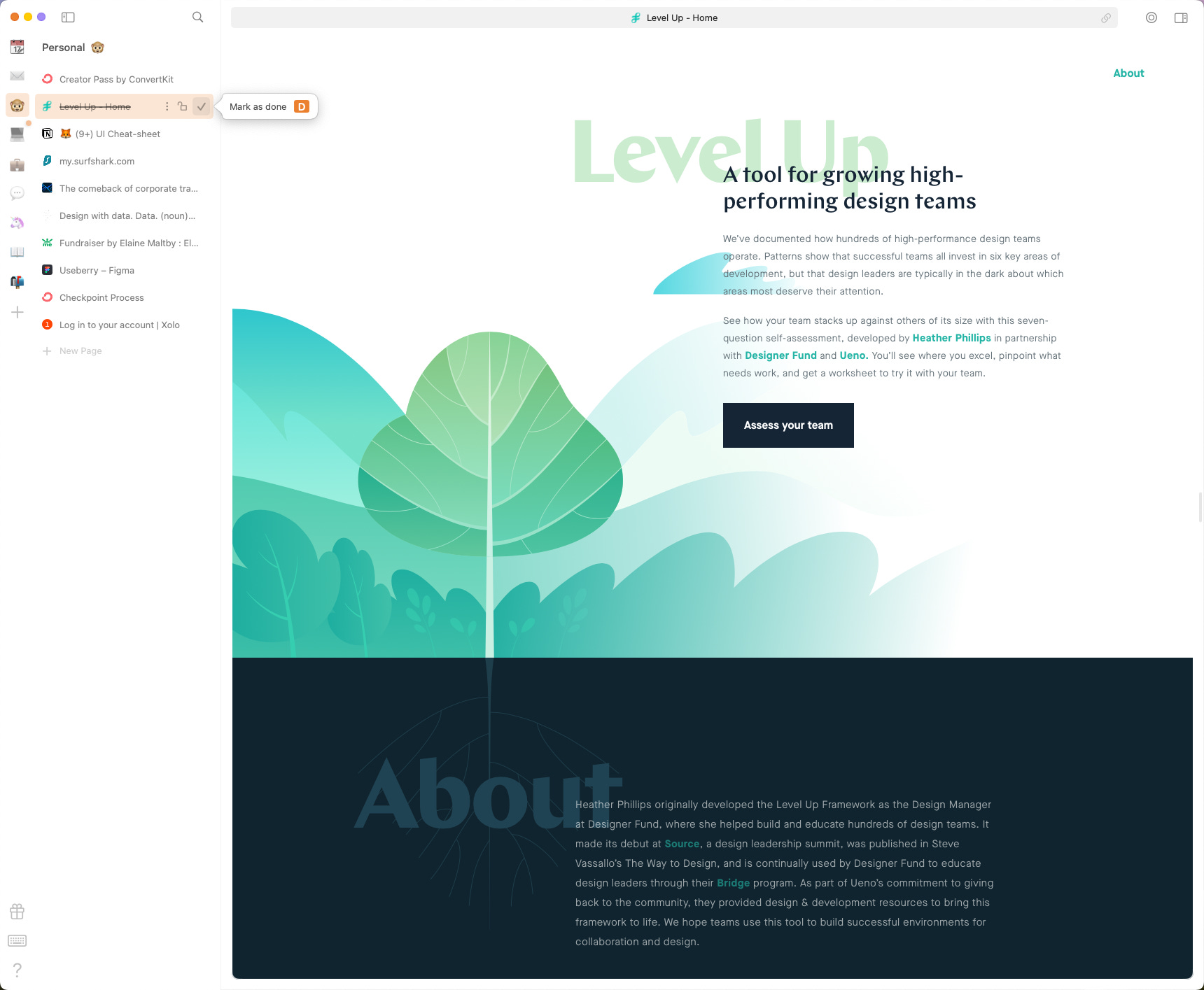
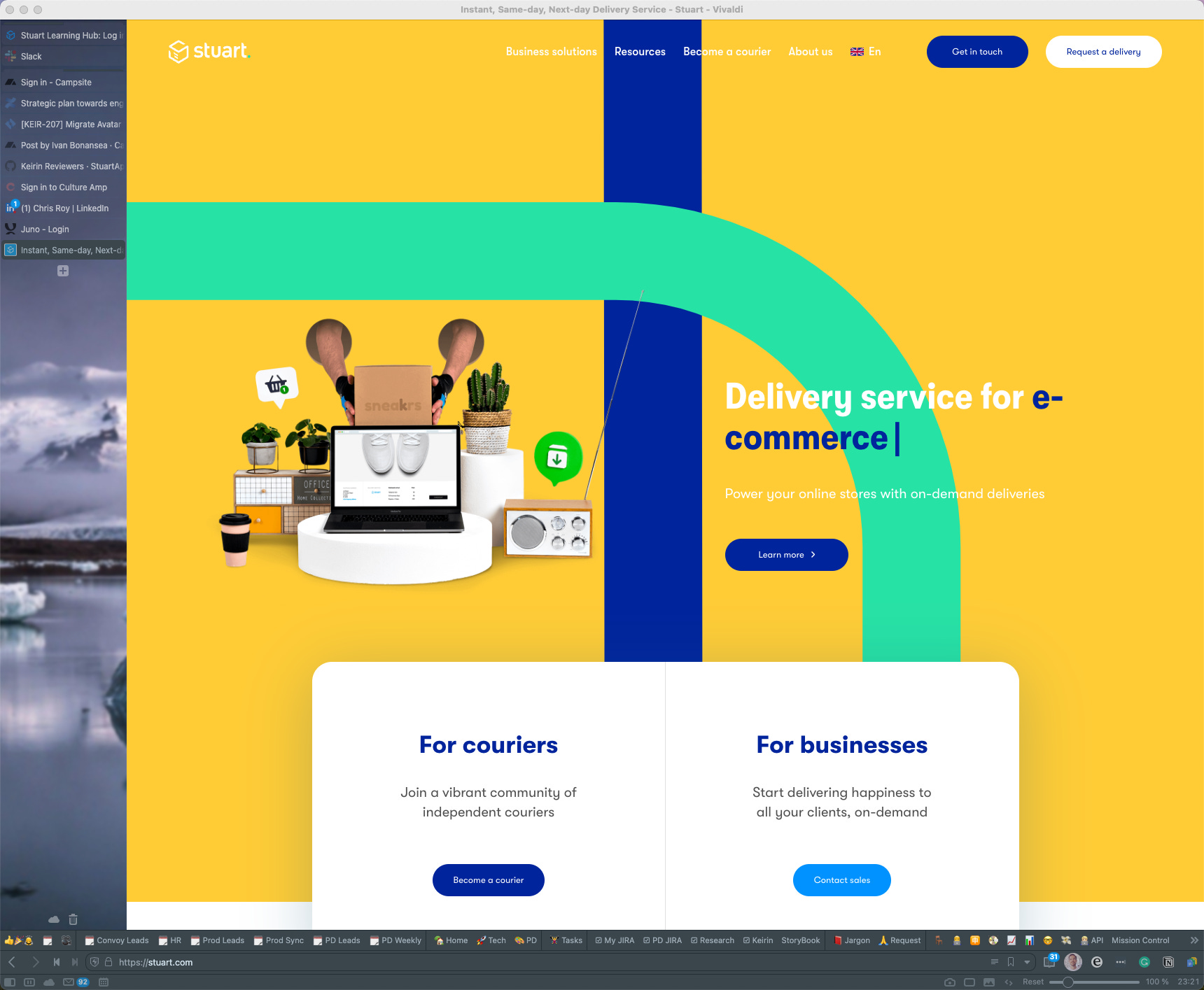
Most recently, I'd been using Vivaldi on a highly-customised setup. Built on top of Chromium it handles profiles in a familiar way, but with a tonne of customisable features beyond just theming and plugins. With regard to windows though, it was comparable to Chrome, with the added benefit that you could delegate some of that window work to the "web panel".
A state of transience
Acknowledging the fleeting nature of most tabs
Quite often we spin up a search, shop for that something or recall a reference. In almost all these cases, we will get the information we need instantly, if not in a matter of moments. Yet I imagine a lot of folks reading this will be looking at an overstuffed tab bar. In Arc, if you open a link from an application or use the ⌘ + ⌥ + click shortcut you will open a link in something they call a "Little Arc". It's a lightweight, beautifully clean window where you can check that link without committing it to your tab stack.
From there, it's a simple ⌘ + W to close or ⌘ + O to add it to your currently active space (⌘ + Shift + O to add it to another space)
Streamlining via spaces
Staying focused in a given context
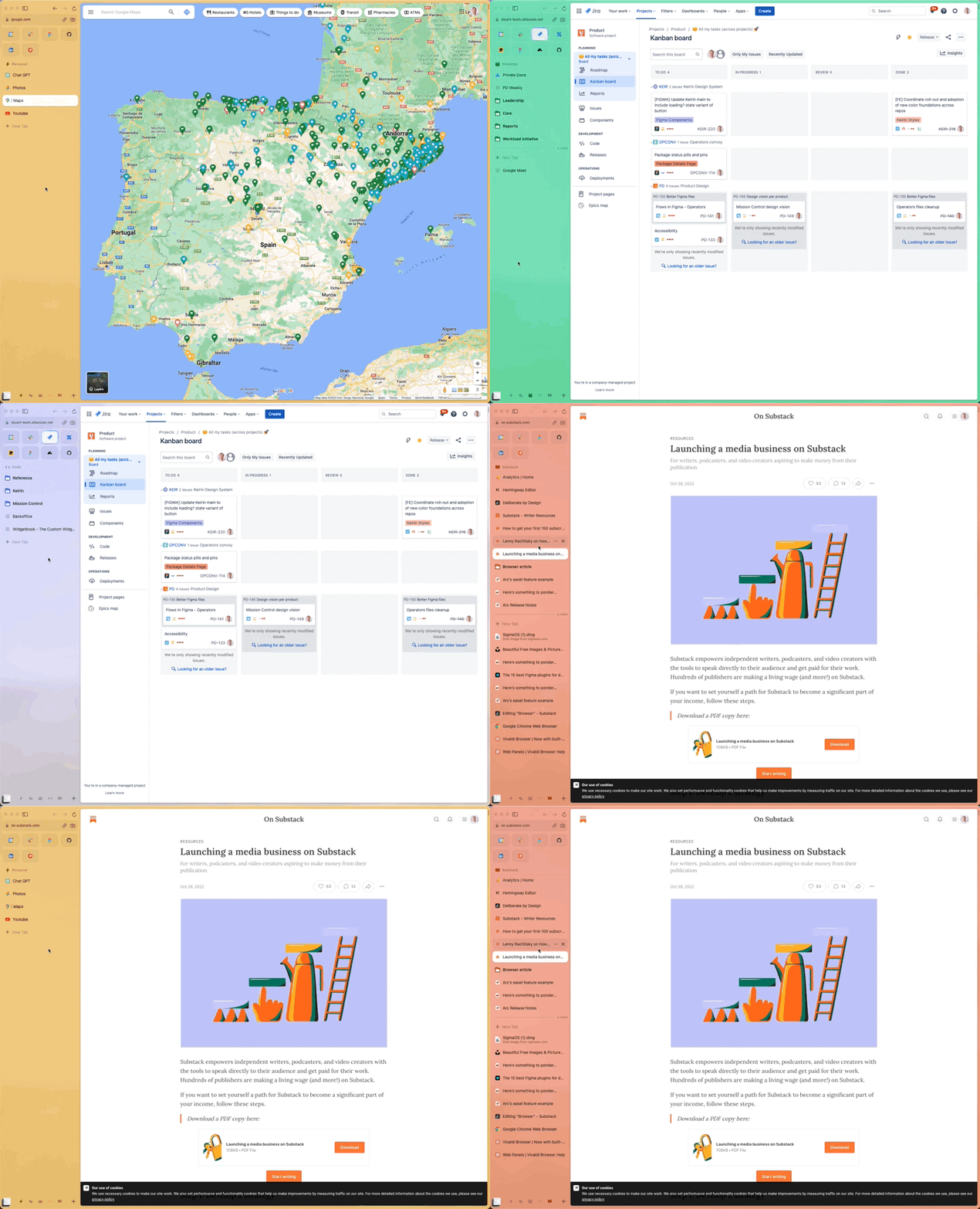
Experimenting with my latest browser find, Arc, I have found a similar concept to SigmaOS's workspaces, but here they call them "spaces". Conceptually it's a way to bring separate profiles and configurations into a single window — and I must say they've done it pretty well.
Rather than lots of clunky clicks and window loads, Arc allows you to swipe effortlessly between your various spaces. For now, I have them set up as:
Personal
General work
Meetings
Code
Substack (a.k.a writing)
Each space is assigned a profile, which manages things like cookies, extensions and pinned tabs—much like in Chrome. The difference here though is how light the experience of switching is. A simple swipe or keyboard shortcut and you can dance between your spaces like a well-greased Scotsman at a wedding.
Keeping tabs on what matters
Migrating from windows to tabs
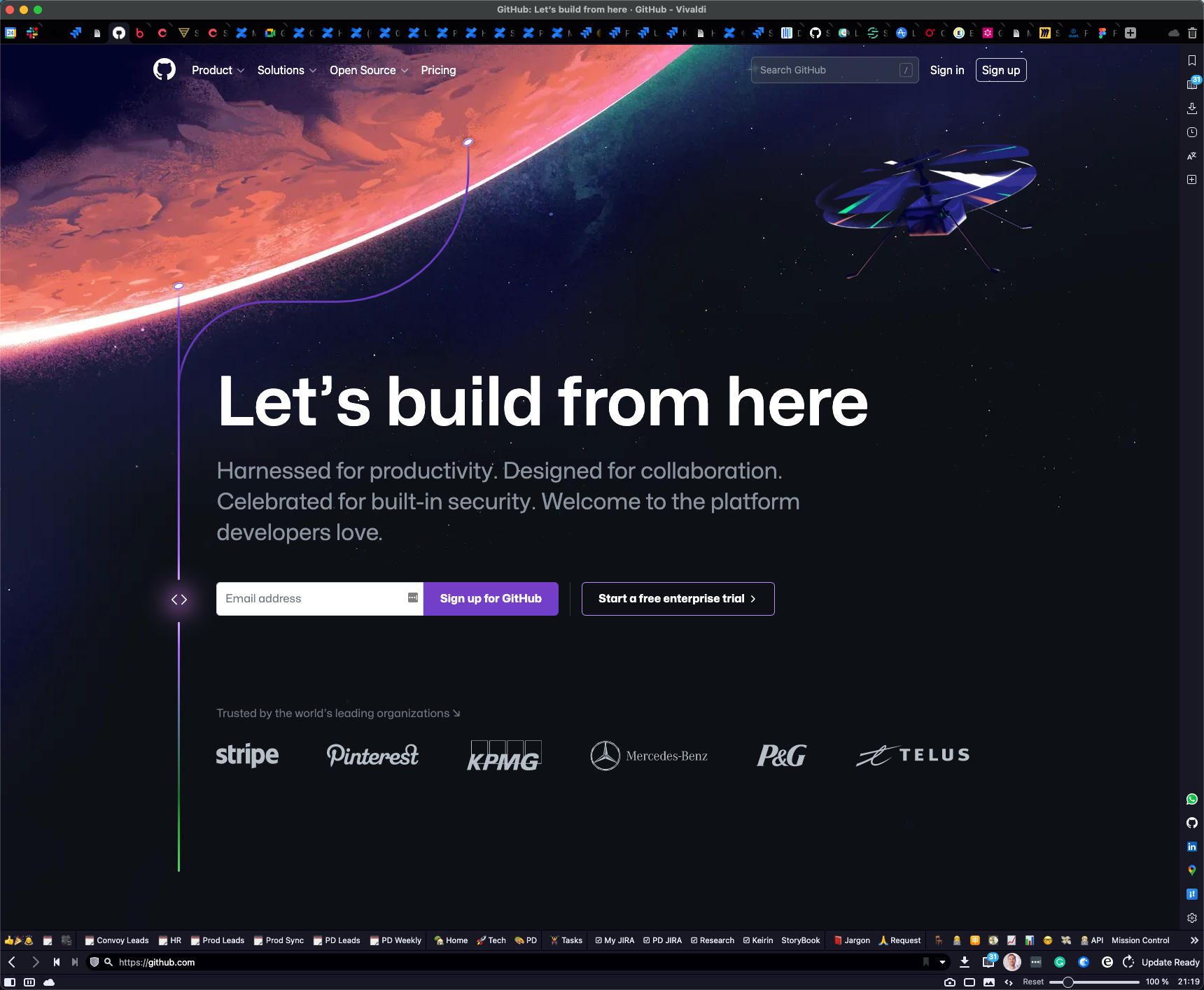
Throughout our history with browsers, we have pushed the use of multiple windows to its limits. Now we needed something more lightweight and encapsulated to tame our information indulgence — in steps tabs. With the introduction of this simple UI pattern, we are able to encapsulate the chaos of our searches, articles, and media streaming all in one window. This kept things cleaner for a while until we quickly found ourselves maxing that out too — thank goodness for favicons.
Just because you *can* stack up hundreds of tabs doesn't mean you *should*. There's no easy way to keep track of which tab is which and, unless you are running a top-of-the-line computer, your laptop will likely give up on that task too. But who wants to "manage" tabs?
Making sense of the noise
Introducing tab groups
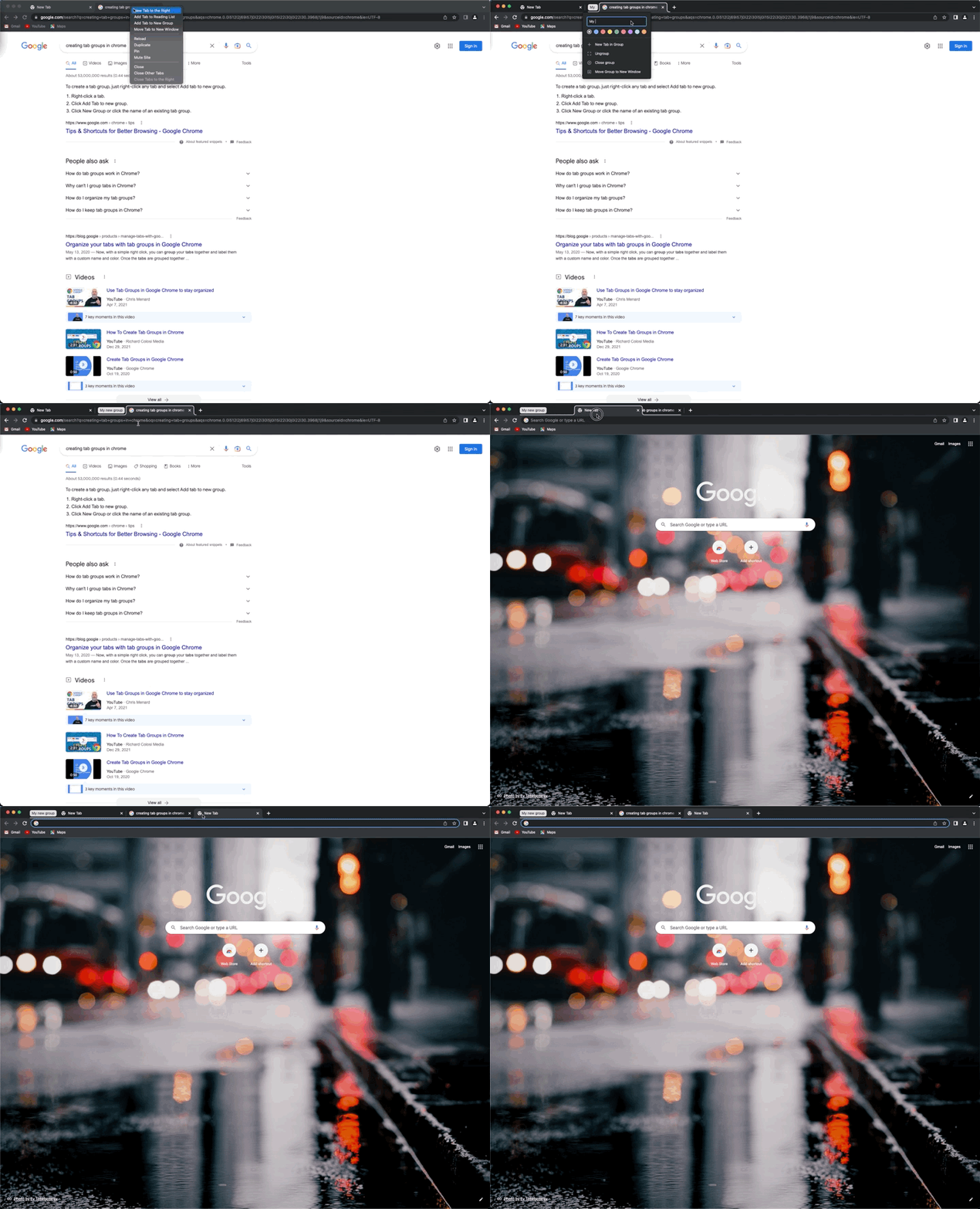
Back in 2020, Google Chrome introduced the idea of tab groups. This feature allows you to group related tabs together in a way that you see fit. This could be a project, a suite of tools, or something more temporary. One issue with this was that the interaction cost was quite high. You had to right-click to create a group, give it a name and start dragging in those tiny, indiscernible tabs into some logical order.
With Vivaldi, some really nice features that made life that little bit easier were the ability to group tabs based on their domain. Building on this, you are also able to open new links inside a 2nd level tab stack. Put simply, this allows links that are clicked from a certain context to stay grouped together with that source. This is great when you are viewing a number of related docs which are all tied to the same source.

Tab stacking helps to create a hierarchy and narrative between tabs. In addition to this, you can also position tabs on whichever side you want. Why try and decipher a sea of ellipses or favicons when you can have your tabs stacked vertically? After all, most of our screens are wide, allowing us a bunch of whitespace on the left and right edges.
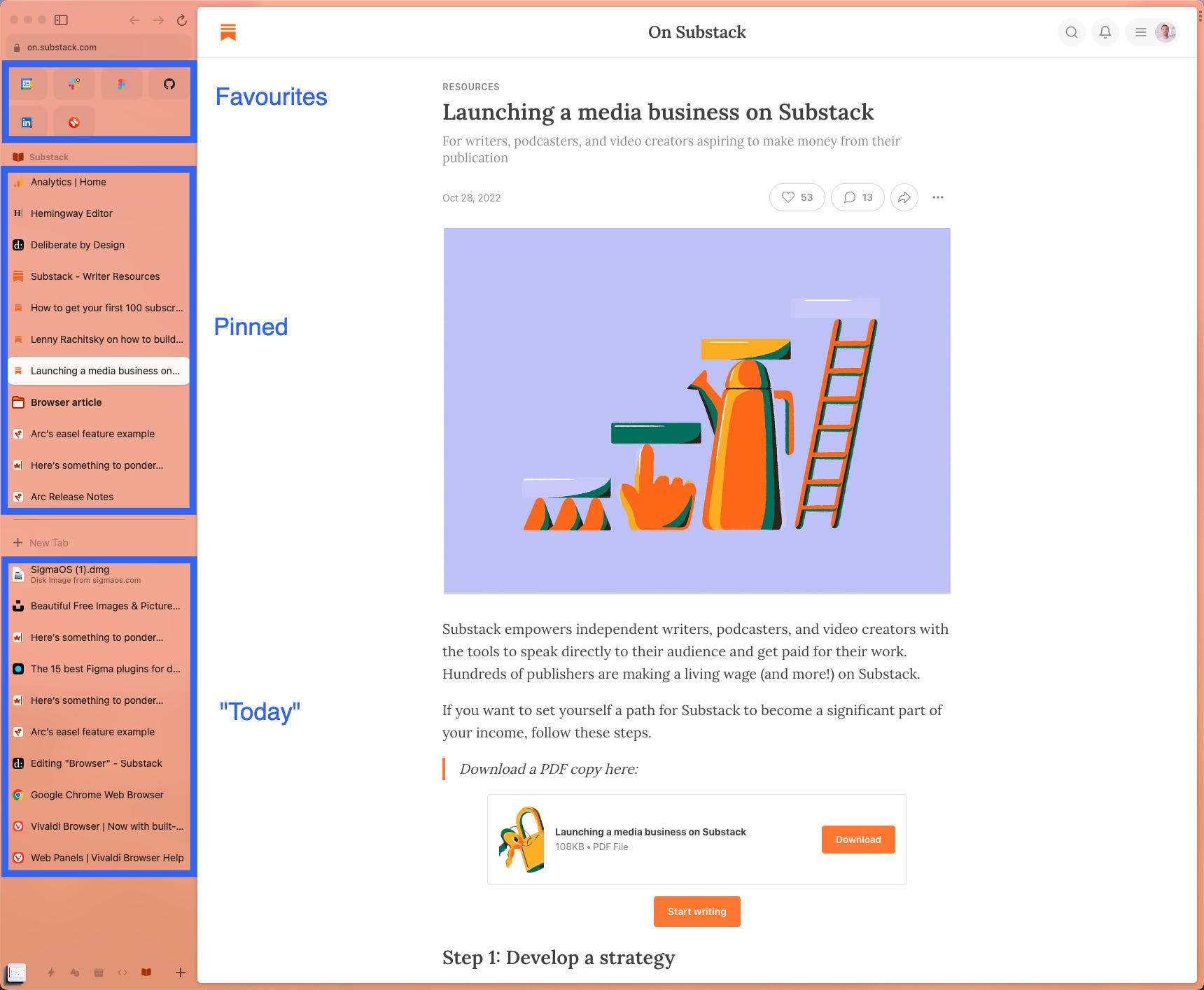
In Arc, tabs have three levels of importance: favourite, pinned, and "today". Tabs opened in "today" can be set to archive after a set period of time. I have my setup configured to blitz my tabs after 24 hours. You can also override this ticking bomb and clear all non-pinned tabs in one click (or via the ⌘ + Shift + L shortcut).
Where to folks?
Because you won't get far without an address
From what I recall, the address bar started out as just that, an address bar. Somewhere you put in the exact address of the site you wanted to visit before teleporting there. With time came forgiveness and that small white strip began suggesting sites based on what you, or others, previously typed — acting as a pseudo-search bar.
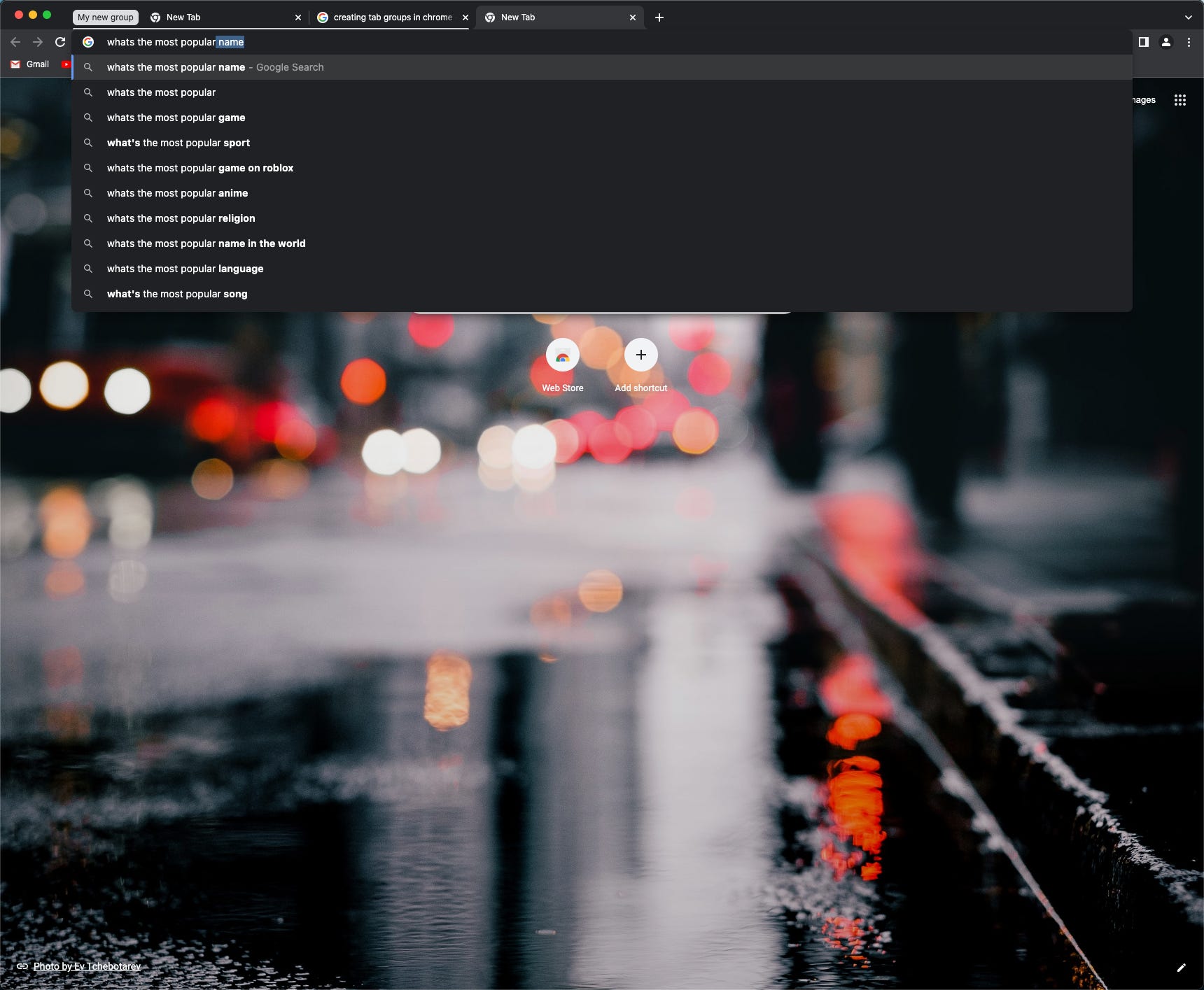
Now, the address bar and search have been conflated and are often synonymous with each other. Type your search term and immediately land on a page of results — without that extra page load. You can also set up your own custom searches with some tweaking for some super productivity gains.
For example, in my current company, we use Confluence a lot for documentation and collaboration. Typically, if you are searching for a document, you would have to follow these steps:
Open a new tab
Enter the web address (for Confluence) and hit enter
Wait for it to load
Focus on the search field (by clicking or pressing the
/key)Type the search query and hit enter
Wait again for the results to load
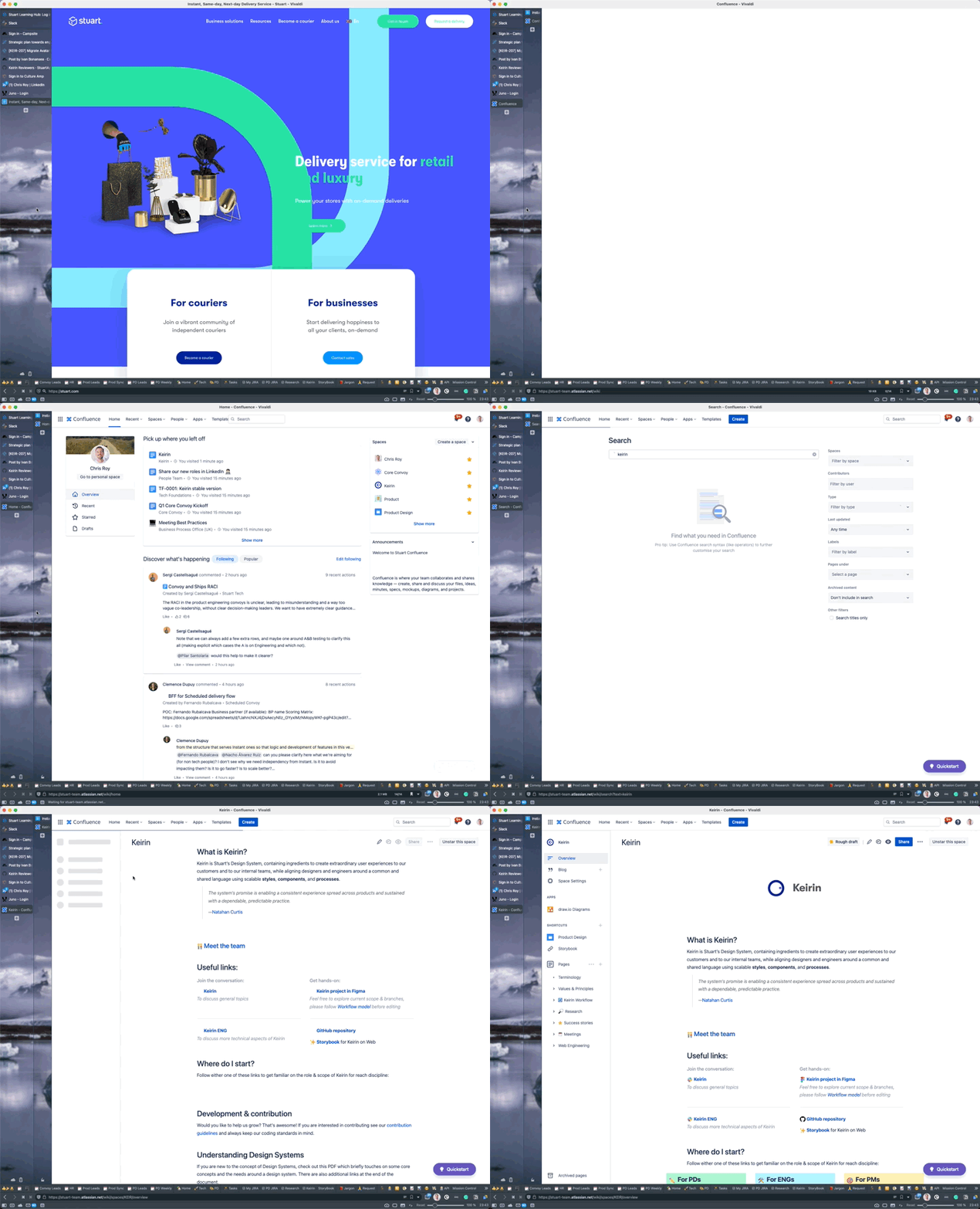
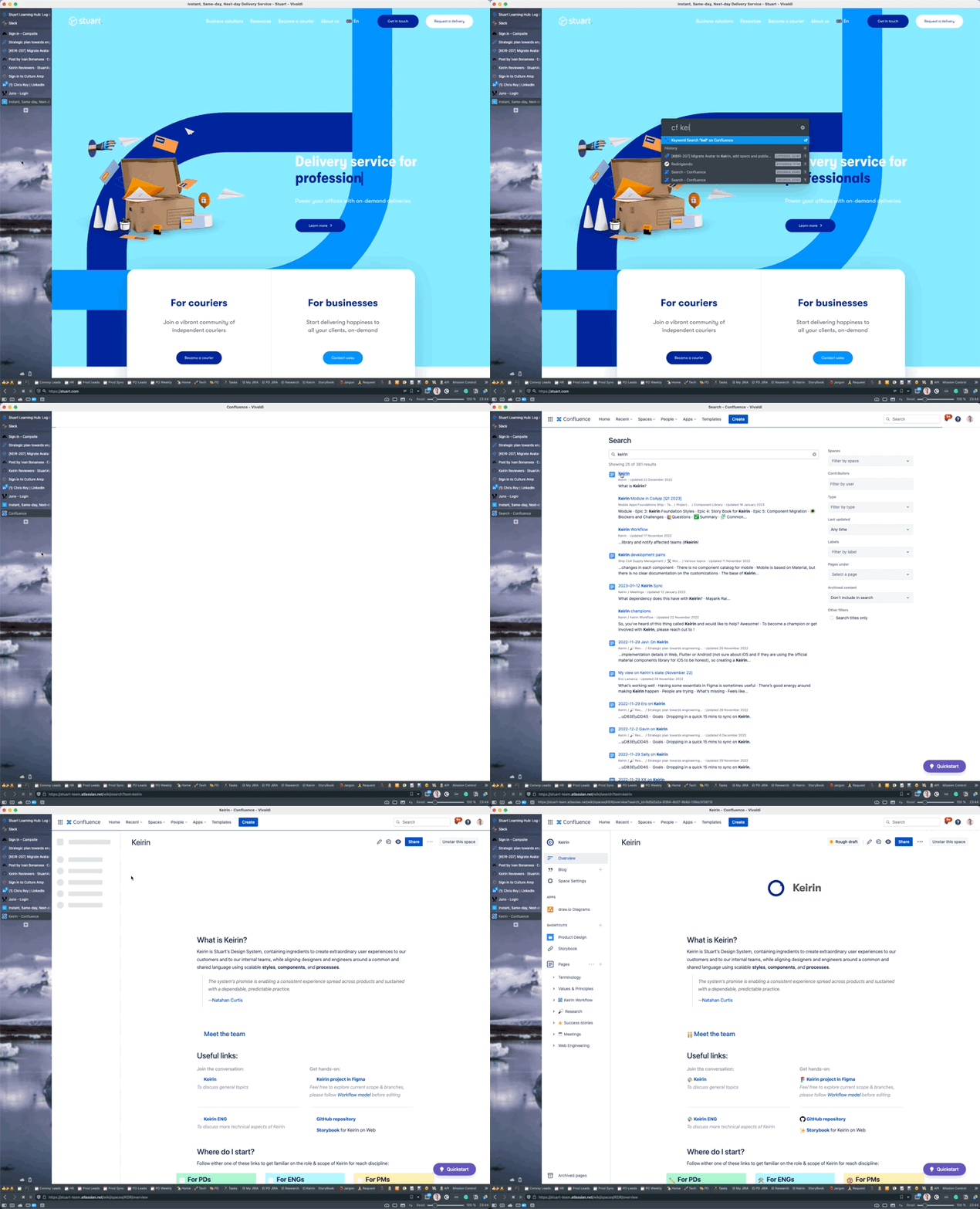
In Vivaldi, I set up a custom search for this often-repeated task. This is what it looked like:
Hit
⌘ + Tto bring up the "quick launcher "Type
cf my search termand hit enter ("cf" for Confluence)Wait for the results to load
Here's what that optimised workflow looks like.
Turbo boosting tabs
Introducing Quick commands, Lazy Search, and Command bar
The designers among us will remember Sketch Runner — a productivity powerhouse plugin. Pretty much anything you could think of doing was triggered by this slim, floating bar. This concept will also be familiar to users of Spotlight and Alfred.
In the browser realm, SigmaOS, Vivaldi, and Arc have each brought their own flavours to the table with varying degrees of success.
Vivaldi's Quick commands dialogue, for example, allows you to open a site based on a nickname. It may seem trivial, but setting up some of my most visited pages in this way saved a tonne of time!
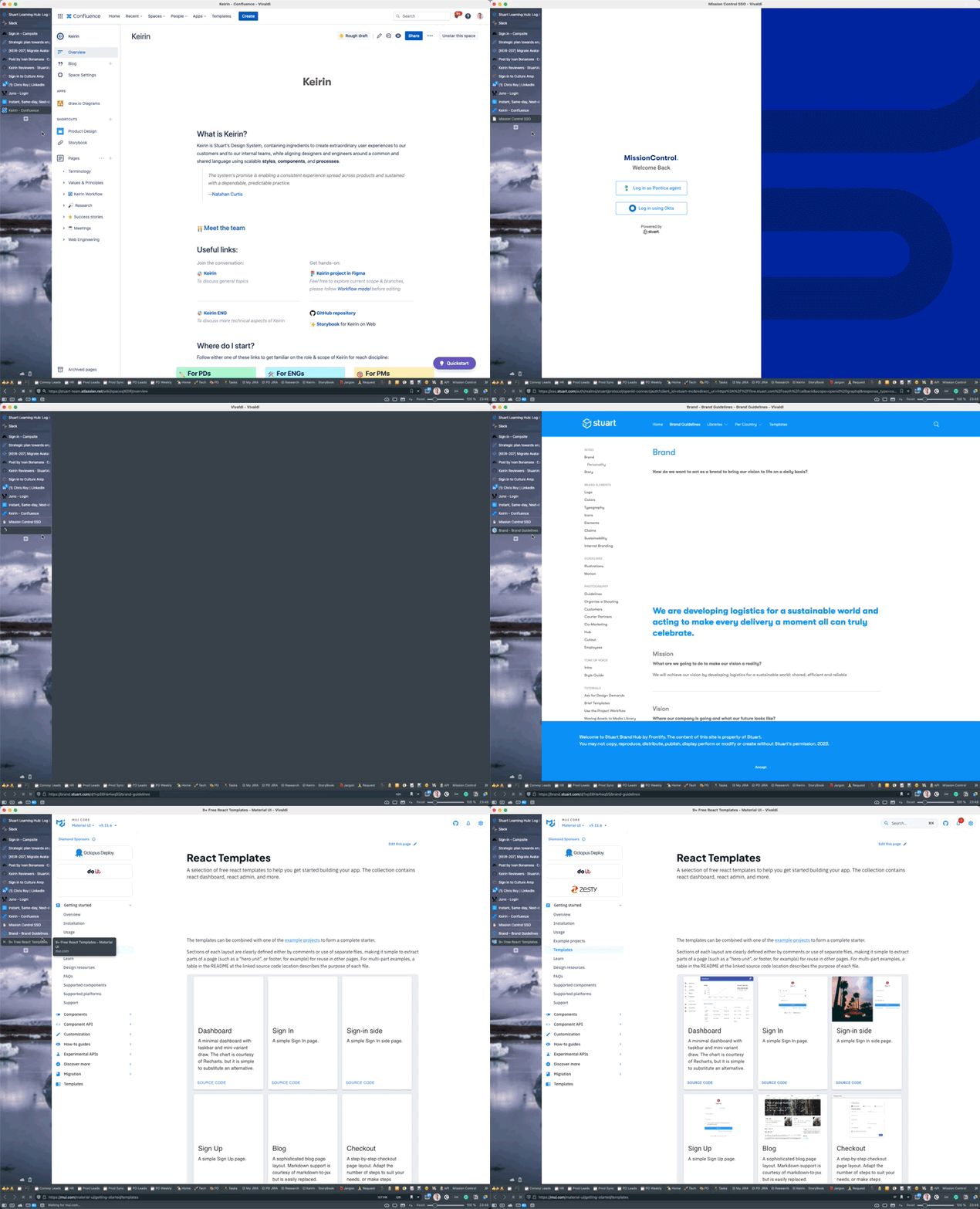
You could also do other interesting things via their Quick commands dialogue but something about it made it feel unpolished. Arc, in comparison, looks and feels much slicker. It offers fewer items and focuses you more on contextual tasks.
For example, in Arc, you can send tabs to different spaces, open Easels, Notes, view tabs in a split view, and of course search the web. Leaning into the well-practised shortcut of ⌘ + T Arc opens up a world of possibilities beyond simply opening a new tab — take that Chrome!
The power of a pin
Keeping track of those most important tabs
Pinned tabs are not a new concept but they have been treated differently in some of the most recent browsers I have used. For example, in Chrome, you can easily close your pinned tab with the ⌘ + W shortcut—which is likely not something you want to do. In contrast, Vivaldi and Arc prevent easy closure of your pinned tabs.
This makes way more sense when you think about it. Pinned tabs have likely been tabbed for a reason. It's a web app you use often, like your Calendar, or a reference that you need to keep handy, like a Design System. Either way, these are likely important to you in some way.
Taking a look at what I normally pin, here are my personal and work profiles within Arc. Straight away you will notice that there are now two levels of the pinned tabs. Up top, you have your favourite tabs, which have a different visual treatment to their pinned tab counterparts which appear below.
Keeping focus, Arc only lets you add up to 12 favourites in any one space. Though these can be customised based on your profiles, offering some nice ways to further customise your setup.
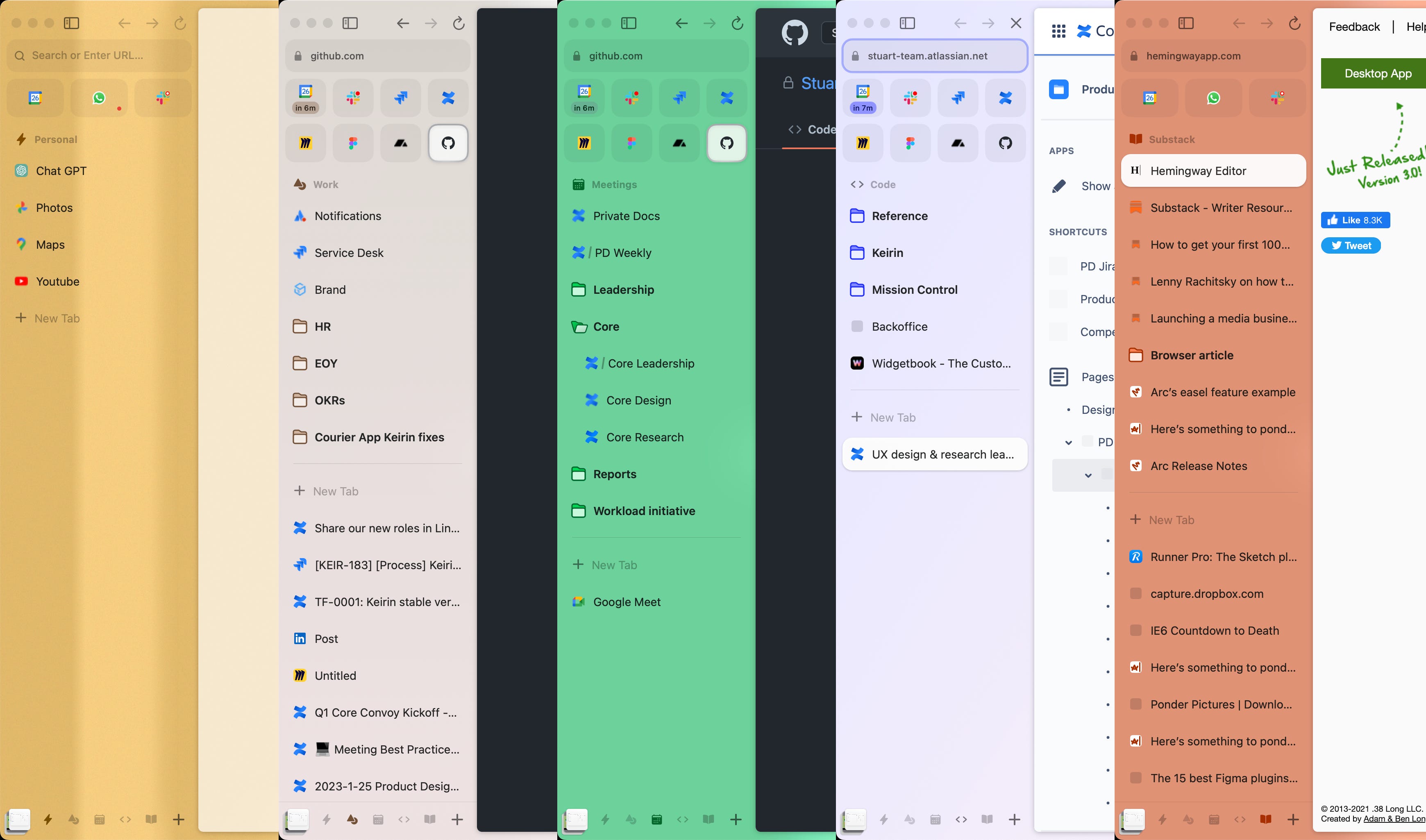
The fun doesn't stop there. Arc has gone one step further with the ability to peek into some of those pinned tabs. For my calendar and one of the Github repos that I monitor, I can easily take a glance at what's happening in that tab without needing it to load. This is a game-changer as we start to see the breakdown of bigger tasks, like checking my calendar, into smaller micro tasks like checking what's next.
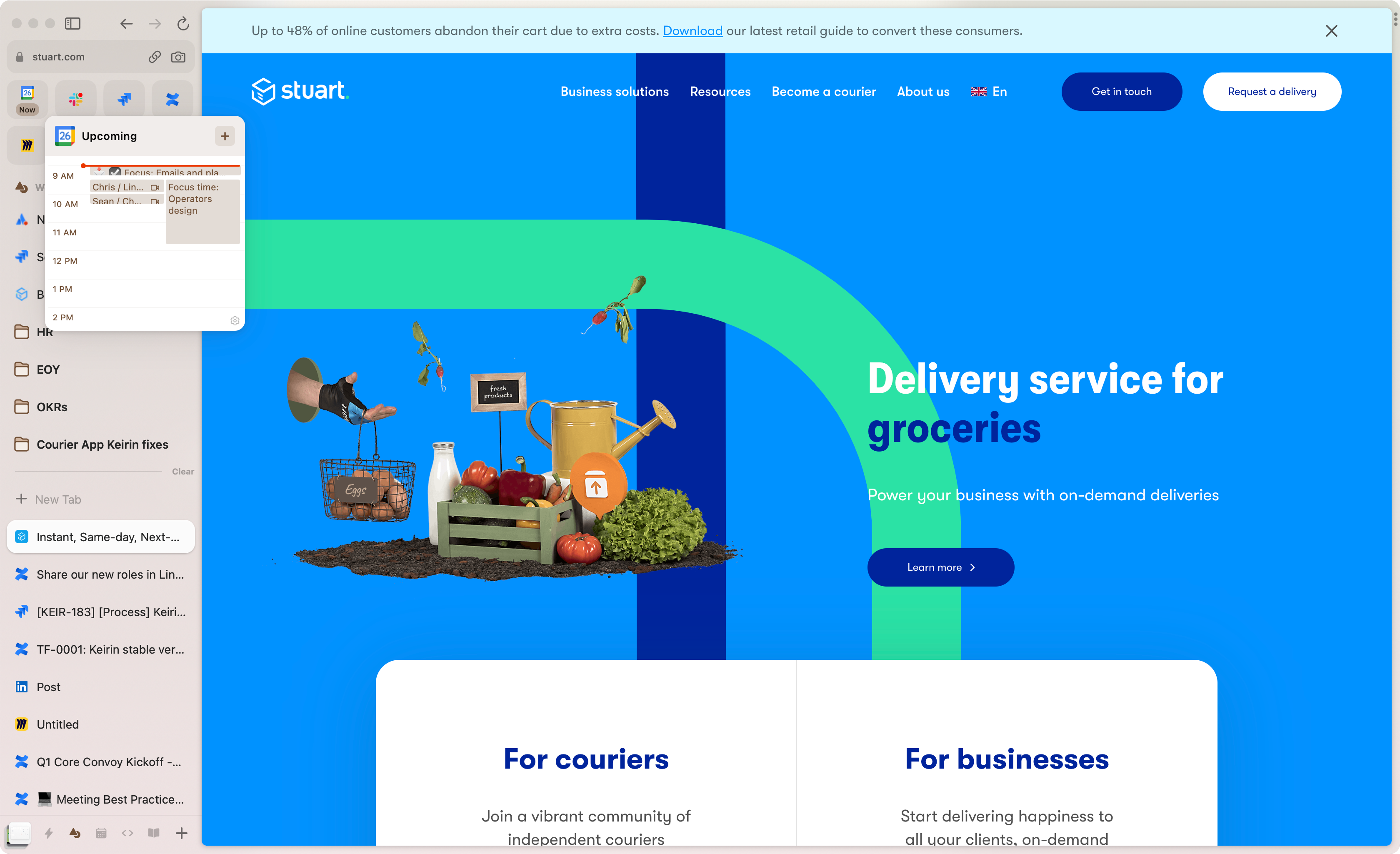
Simplifying tasks like this and distilling complex information through a clean UI helps reduce the level of "noise" that we are exposed to each day. This is a pattern I hope to see much more of.
Can I get a rewind?
Turning back time to that original URL
Paying attention to the details, another interesting take on pinned tabs is the concept that each favourite or pin has a "home". What do I mean by that exactly? Well, let's say I pin a Slack channel to one of my spaces for a design channel. It would be quite easy to visit that pinned tab and branch off from the originally pinned URL. In all other browsers, coming back to this tab, you'd wait for it to load and then click around to get back to that important URL that you pinned in the first place.
In Arc, clicking on a pinned tab will open it on whatever that last URL was for that app. But — and here's where the magic comes in — if you double-click on a pinned tab, it will direct you way back to that originally pinned URL. Sweet.
In your favourite tabs, this feature is a little hidden. However, on your pinned tabs, you will notice a subtle forward slash to signal that you have veered off course.
Hold my screenshot!
Keeping track of our visual notes
There can be a lot of reasons for taking a screenshot, but the experience itself can often be lacking. In Chrome, this is only available through the dev tools or some third-party extension. Taking screenshots in Vivaldi is a native feature which can be found in the toolbar. It has just enough features to make it worthy of sticking to this native solution — vs reaching for a third-party extension.
Arc takes this one step further and introduces us to the concept of our library. This is where they have really tipped things on their head. Normally, your screenshots or downloads are captured and end up in some obscure folder in the depths of your file system. Not now.
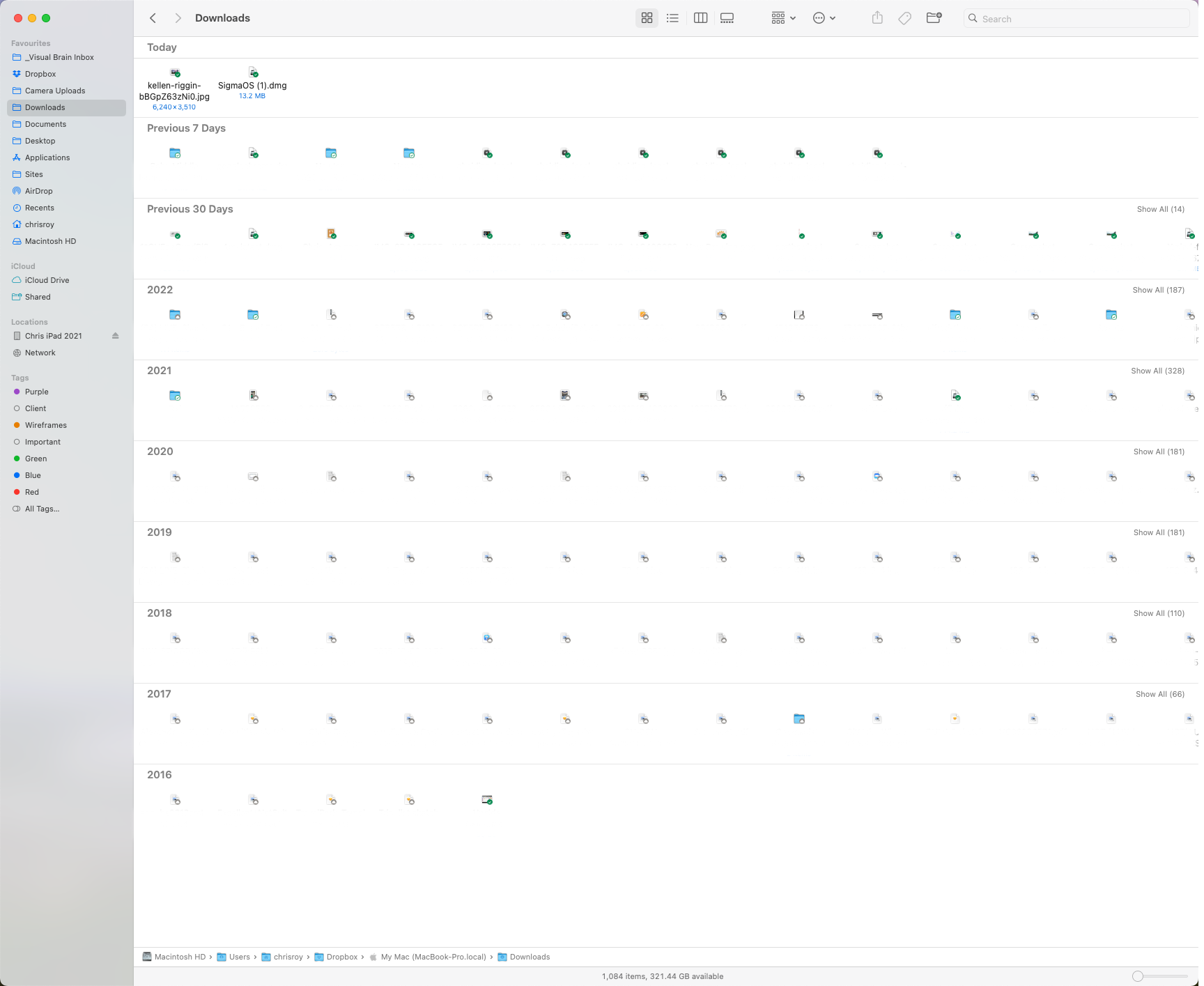
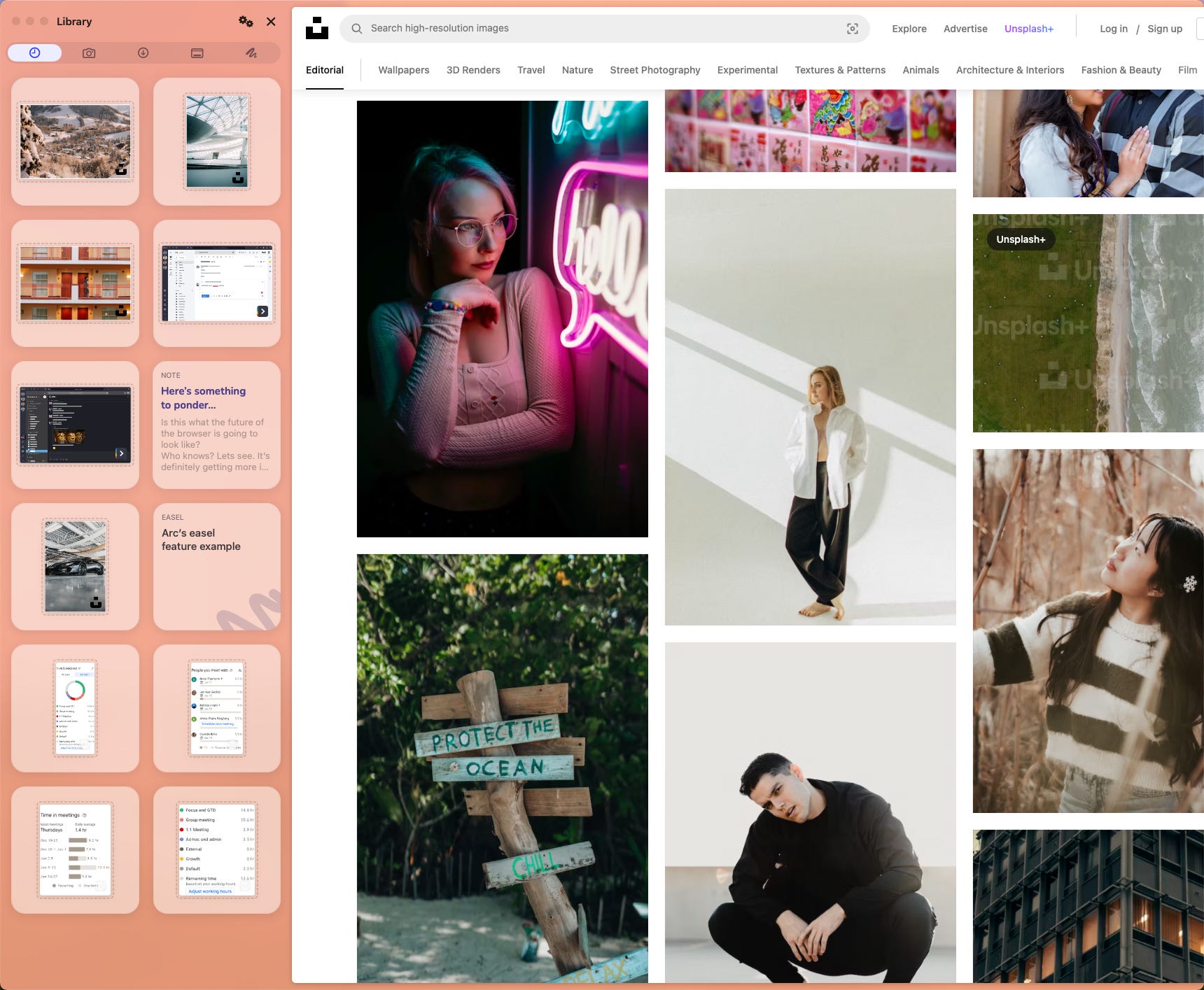
With Arc, all your screenshots, are captured and easily accessible via something they call the "Library". Here you will find your screenshots alongside your downloads. Not only that, but they are also introducing their own native whiteboard and note-taking tools. I'm not sure if they will replace the other tools out there but for quickly capturing and making sense of thoughts this is a nice, lightweight option.
Connecting the experience
When everything just...works
The way that all of these previously disconnect tasks have been designed to work together is pretty smooth. I can take a screenshot of something, switch to another tab, Easel, or Note, and from the bottom left corner, simply fan out my recently captured screenshots and drag them into that tab. Wow.
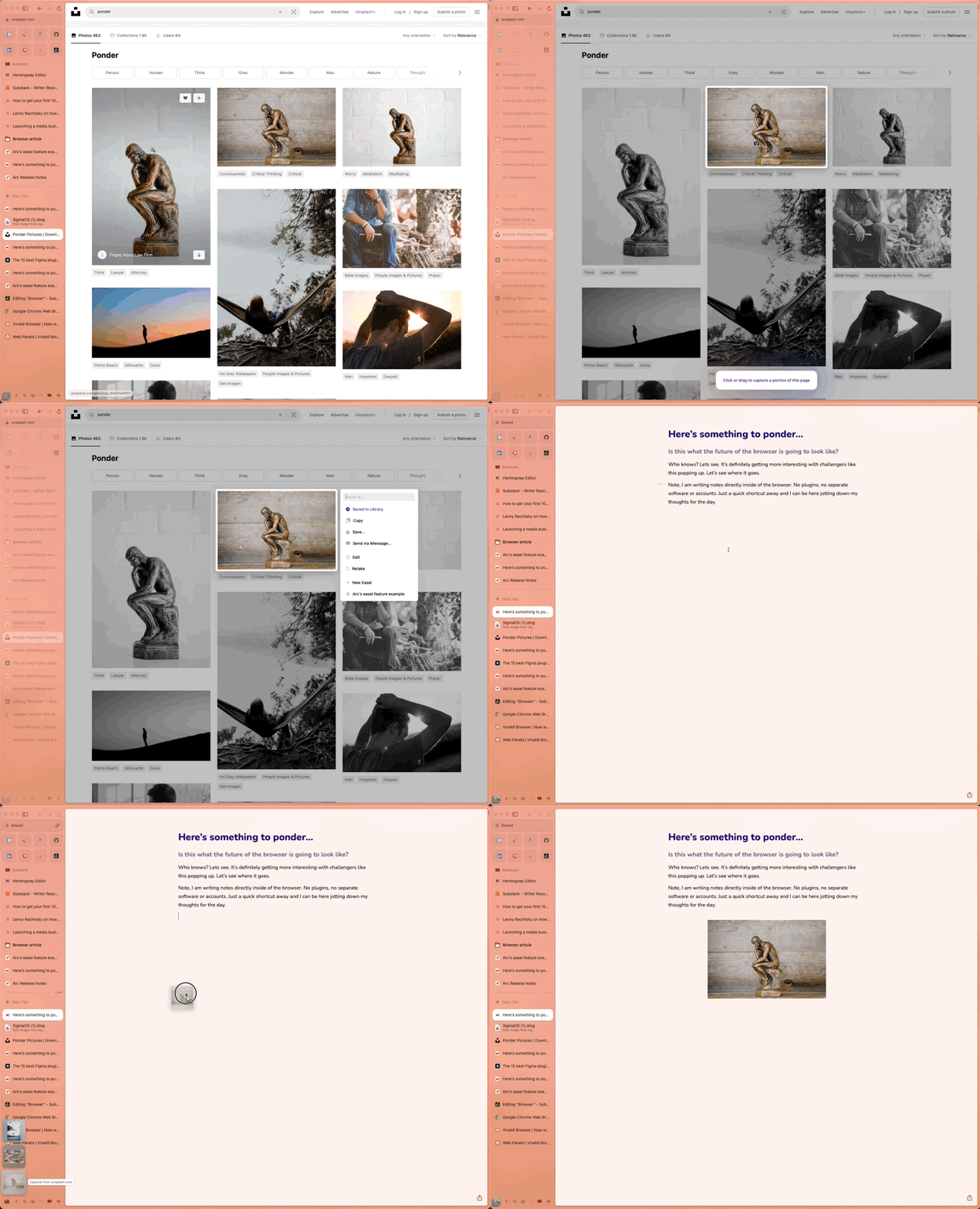
I'm really excited to see how this will play out and how I might use these features in future workflows. As an added plus, anything you capture and create in an easel or a document can easily be shared with anyone. In the past, this would have required a bunch of different tools, whereas in Arc all of this can be done from a single place.
Shortcuts
We all love a good time-saver
As someone who loves a good shortcut, I'll wrap up here with the fundamental concepts as there's simply too much to go into in all this detail. This last point may seem trivial but is a really fresh take on a problem that you've likely faced at some point if you have used a browser extension. Or if you tend to jump between native apps and their web version.
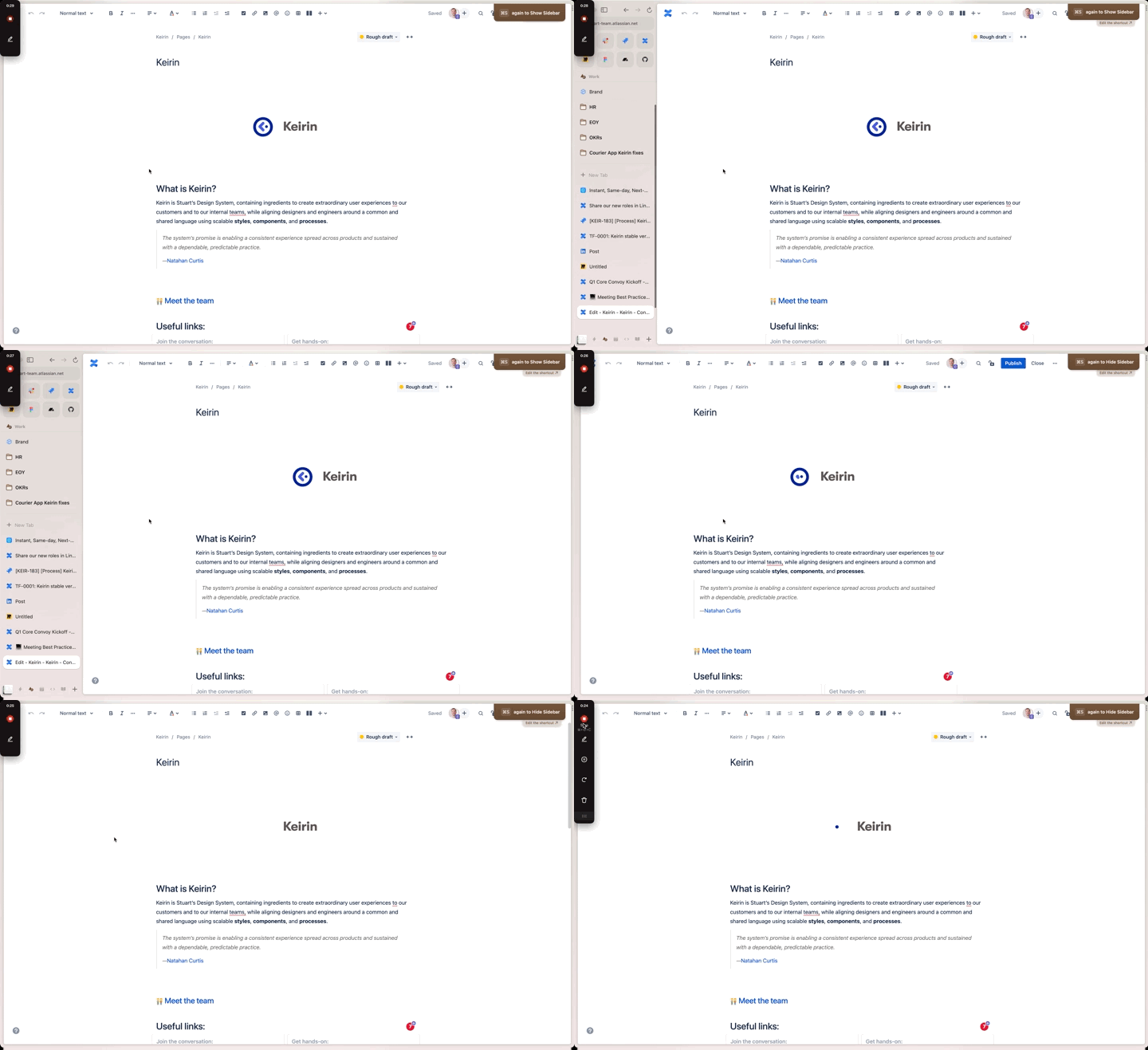
Shortcuts in the browser are already set up but can often be customised. Taking things to the next level, Arc allows you to set a nifty little flag on your shortcuts. You can either respect the web app shortcut or the Arc shortcut. Additionally, you can also switch between the two by pressing the shortcut once or twice.
A great example of this would be the ⌘ + S shortcut. Normally this would save a page or whatever you are working on. In Arc, this is also used to show and hide the sidebar. You can define what the exact behaviour should be to help you avoid any keystroke conflicts.
That's a wrap
Wow, so that was a long one. If you have made it this far—thank you! Your interest and support are what make writing these articles possible.
Found some interesting tips? Know someone else who would love to geek out on the progression of web browsers? I'd appreciate a share 🙏
Paid subscribers can check out the link below to get an invite to Arc to try it out for themselves. In the near future, I'll also be following up with an in-depth video showcasing a much more detailed look at all of Arc's features.
Check out Arc today
Using this referral link, you will be able to download and check out Arc too:
https://arc.net/gift/1877fe6f
Listening to…
The final edits of this post were powered by Cercle: Above and Beyond